
How do I import a book I wrote elsewhere?
Import your Word or PDF file and we split it into chapters, which you check before anything goes into your book. You then keep writing and formatting it in Creator Studio, just as if you had started here.
Before you start
- Your file is a Word document (.docx) or a PDF, up to 50 MB.
- Written in Google Docs? Use File > Download > Microsoft Word (.docx) and import that file.
- Use Word's heading styles for chapter titles and its built-in table of contents. A contents page typed out by hand looks like a stack of chapter titles to us.
- Have a finished, print-ready file you don't want to edit? Choose I already have a finished file instead. Those books can't be edited in Creator Studio later.
Steps
- On your dashboard, click New book and choose Import a Word or PDF document.
- Enter a Working title, pick your Genres and click Continue.
- Drop your file where it says Drop your .docx or .pdf here. Most files take 20 to 40 seconds. Long documents take longer, and you can close the window and come back.
- Creator Studio opens on Here's your book as we read it. Check the chapters: click a title to rename it, click Show me on anything we've flagged, start a new chapter between two paragraphs, or leave a page out. If the split looks wrong throughout, choose Add it all as one chapter instead and split it later in your outline.
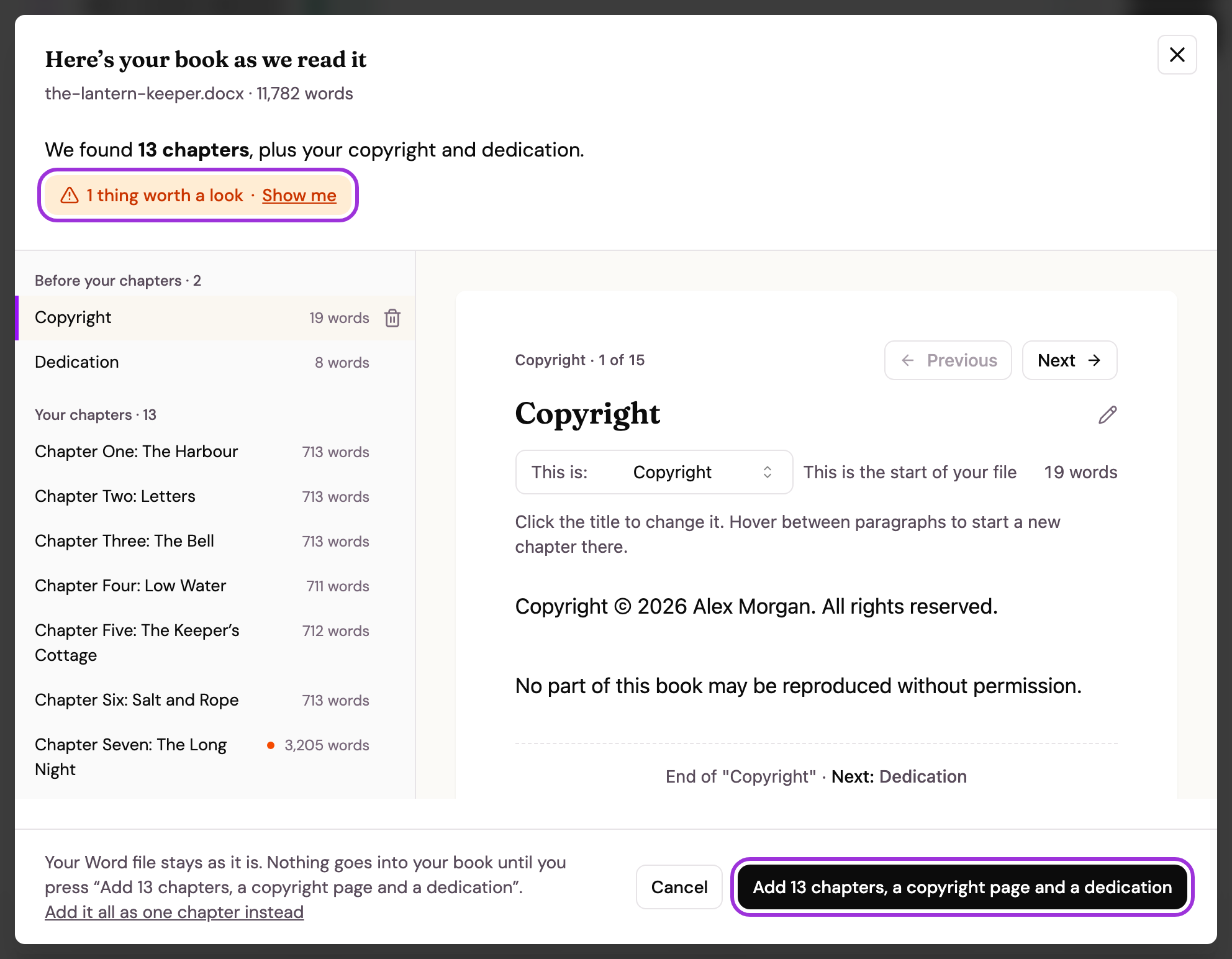
- Click the Add button at the bottom. It names what goes in, for example "Add 13 chapters, a copyright page and a dedication". Nothing goes into your book until you click it. Changed your mind straight away? Click Undo on the message that follows.
To add a Word or PDF file to a book you've already started, open the book and use File > Import > Word or PDF. You review the chapters the same way, and they go after your existing chapters. Nothing you've already written changes.
If something goes wrong
- "This file is over the 50 MB limit." Choose a smaller file, or split it into parts and import each one.
- "This file is either password protected or saved in the older Word .doc format." Open it in Word, remove any password, then use File > Save As and choose Word Document (.docx).
- "This looks like a scanned PDF" or "This PDF is password-protected". We can only read PDFs with selectable text and no password. For a scan, run it through a free OCR tool to get a .docx, or use a text-based PDF. For a password, import the Word file instead, or a PDF saved without a password.
- The text came in wrong, or chapters are missing. Check that the document uses Word's heading styles and has no contents page typed by hand, then import it again. If chapters split in the wrong places, use Merge into the one above or Pick where the next chapter starts in the chapter check.
- "This import failed". Click Get in touch and we'll help sort it out, or click Back to my manuscripts to retry the import or delete it.
Related
Still stuck? Message us from the chat bubble and we'll help.
Updated on: 23/11/2026
Thank you!