
How do I keep track of my characters?
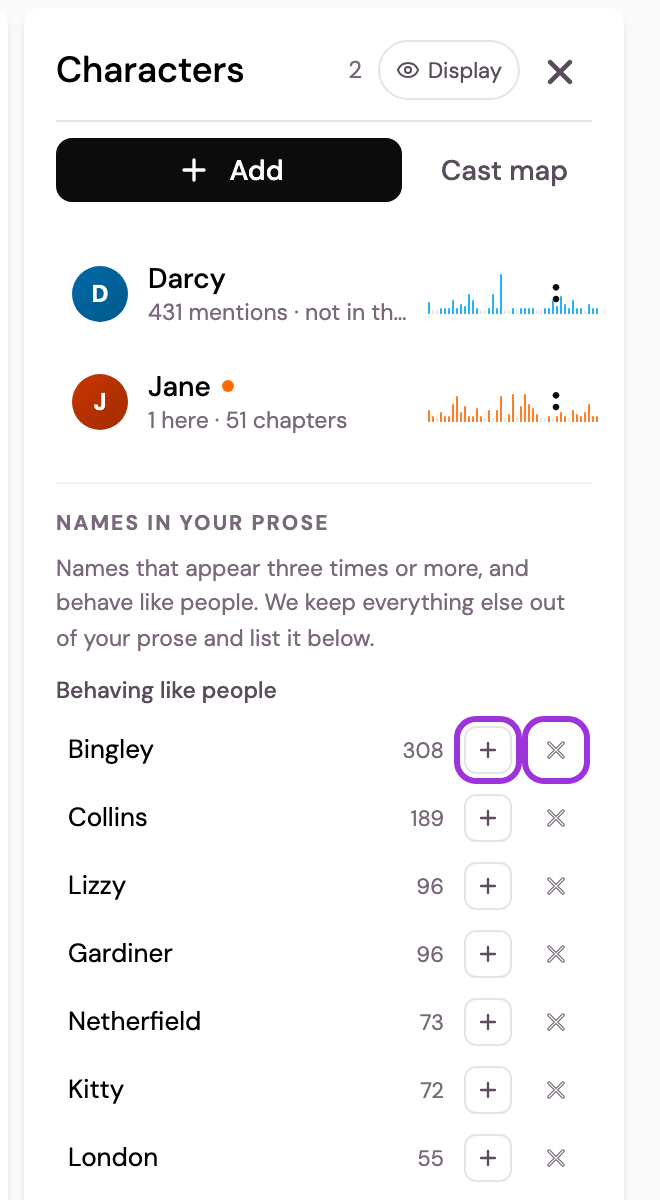
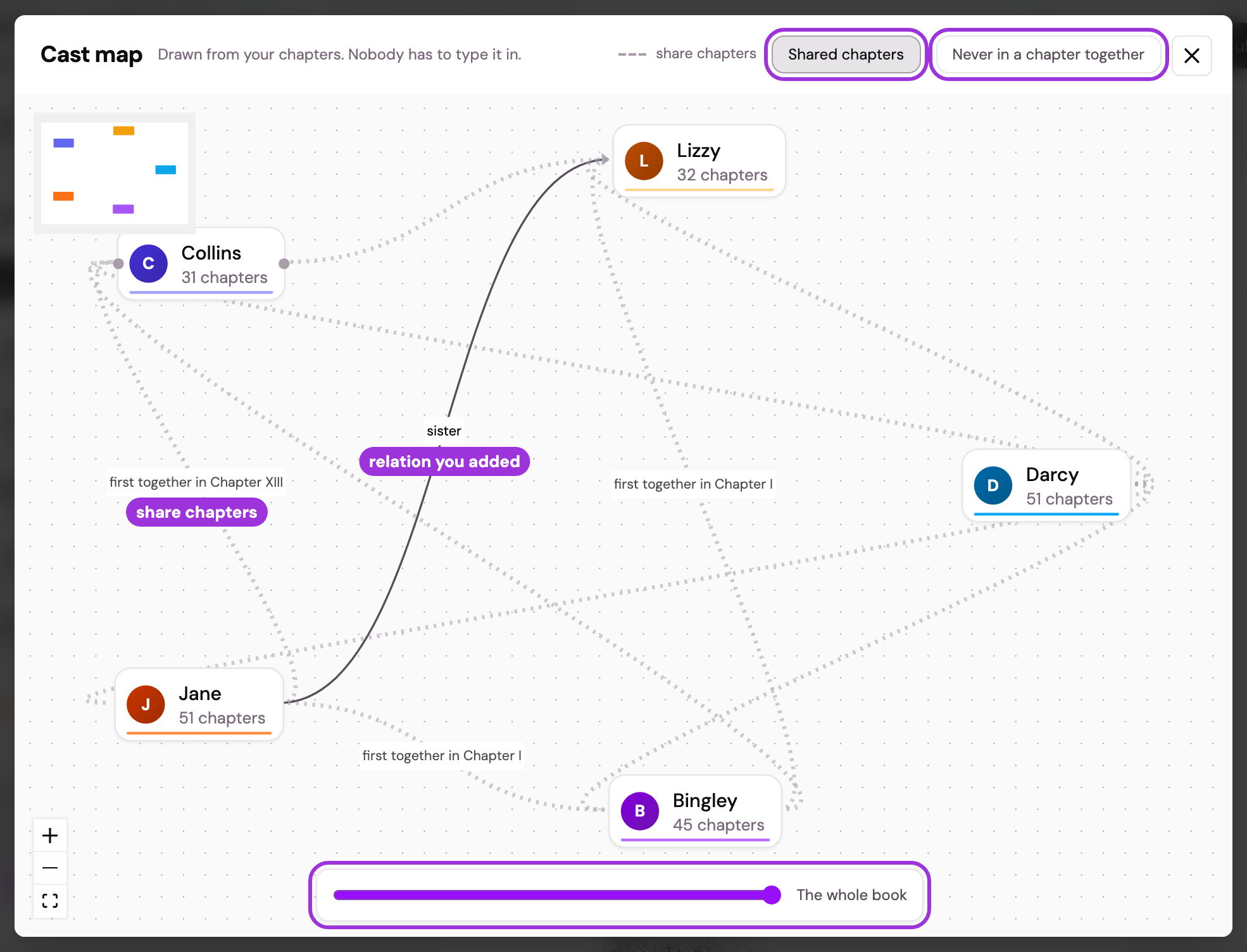
Open Characters in Creator Studio and we list the names your chapters already use, so you can add each one to your cast with a click. Every profile shows the chapters that character appears in, and the Cast map shows who shares chapters with whom.
Before you start
Characters works on every plan and uses no AI: it finds names by matching them in your text. Your plan sets how many character profiles each book can hold. See our pricing page for the numbers.

Prefer to watch? This short video guide walks through every step.
Steps
- In Creator Studio, click Characters in the left rail.
- Under Names in your prose, we list names that appear three times or more and behave like people. Click the plus beside a name to add them to your cast, or the cross to hide it. To add someone we haven't found, click Add.
- Click a character to open their profile. Choose Main, Supporting or Minor, then fill in what you want to keep straight, such as their description, appearance and age. Add your own fields under Anything else you track. Everything is optional except the name.
- Type other names they go by in also known as…, so mentions under those names count for the same character.
- Under Who they know, add a relation, pick a character, say how they're related, then click Done and Save changes.
- Open Where they turn up to see every chapter they appear in, with a count for each. Click a chapter to go straight there.
- Click Cast map to see the whole cast at once. A solid line is a relation you added. A grey dashed line means two characters share chapters. Turn on Never in a chapter together and red dotted lines join the characters who never do. We only compare characters who are in three or more chapters. Drag the slider to show the cast up to any chapter, and click Reset to go back to the whole book.
If something goes wrong
- You can't add another character. You've reached your plan's profile limit for this book. To free one, open the three-dot menu beside a character and choose Delete, or click See plans. Deleting a profile keeps their name in your chapters.
- We ask "Did you mean…?" about a name. Your chapters use a spelling close to a character's name. Choose Same character to add that spelling to their profile as another name, or Not a typo to stop being asked.
- You hid a name by mistake. Click the line that says how many names are hidden on this device, then click the name to suggest it again.
Related
Still stuck? Message us from the chat bubble and we'll help.
Updated on: 23/11/2026
Thank you!