
How do I restore an earlier version?
Open History in Creator Studio, pick the version you want and click Restore as new version. We save versions automatically as you write, and restoring never deletes anything: the versions after it stay in your history.
Steps
- In Creator Studio, click the History icon in the right bar. It opens your Version history.
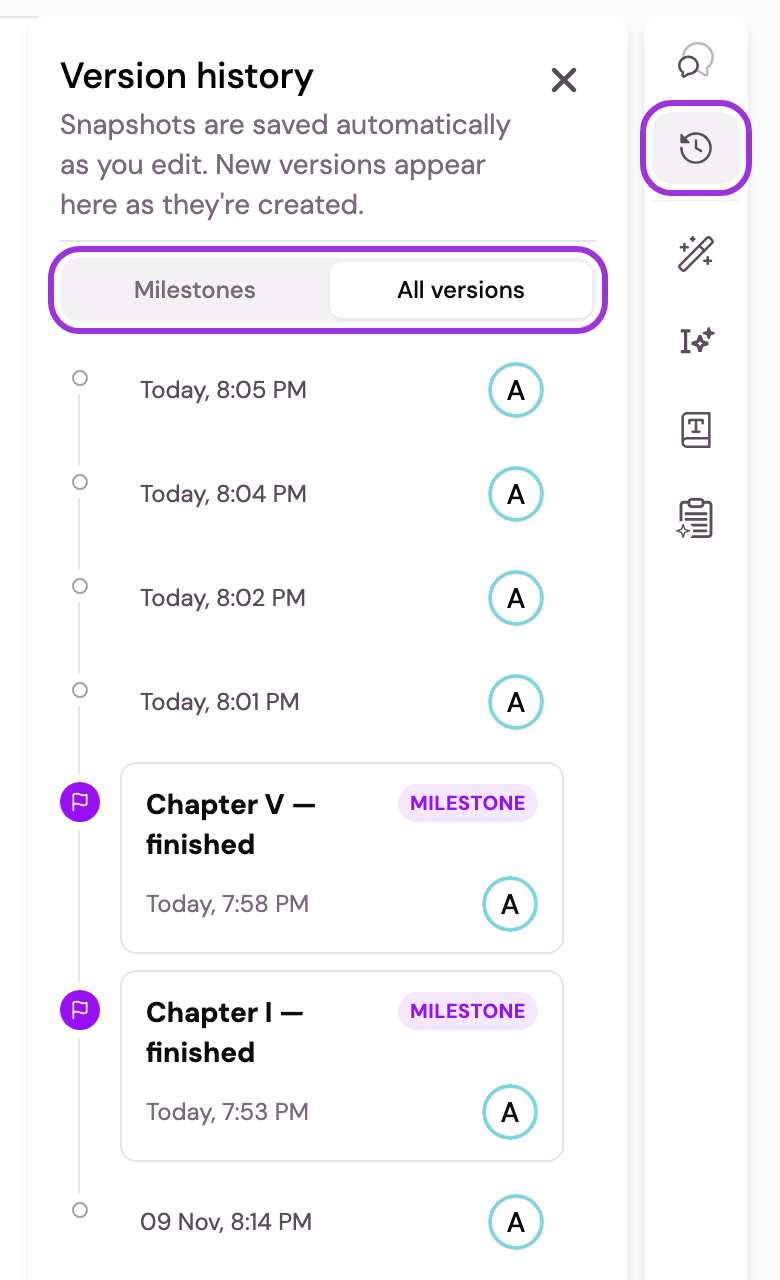
- Choose All versions to see every saved version. Milestones shows key moments only, such as when you marked a chapter Done or published.
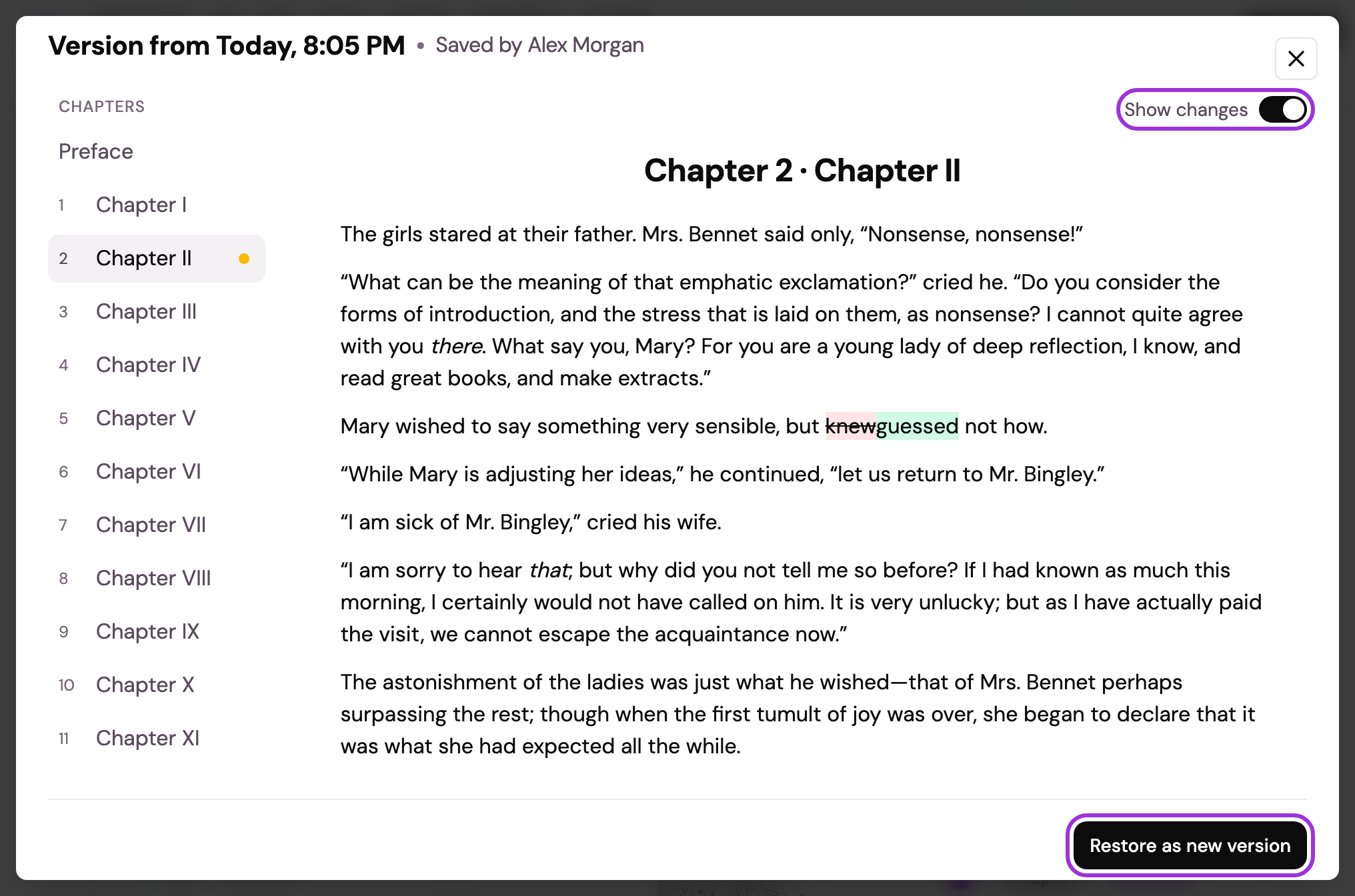
- Click a version to open it, then pick a chapter on the left. With Show changes on, we mark what changed in that chapter since the version before. Turn it off to read the chapter as it was.
- Click Restore as new version and confirm. Your whole book goes back to how it was at that moment, saved as the newest version.
If something goes wrong
- You restored the wrong version. Nothing is lost. Open History again, find the version from just before you restored, and restore that one.
- "No milestones yet". Switch to All versions. Milestones appear once you mark a chapter Done or publish.
- There's no restore button. Viewers can look through versions but can't restore them. Ask the book's owner to change your role.
- "Could not load the version history". Reload the page. If it still won't load, message us.
- There's no History for a book you uploaded. Books started with I already have a finished file aren't edited in Creator Studio, so they have no version history.
Related
Still stuck? Message us from the chat bubble and we'll help.
Updated on: 23/11/2026
Thank you!