
How do I write and organise my book?
You write your book in Creator Studio, one chapter at a time, and every change saves as you type. The outline on the left holds your front matter, chapters and back matter, so you can add, rename, reorder and track chapters in one place.
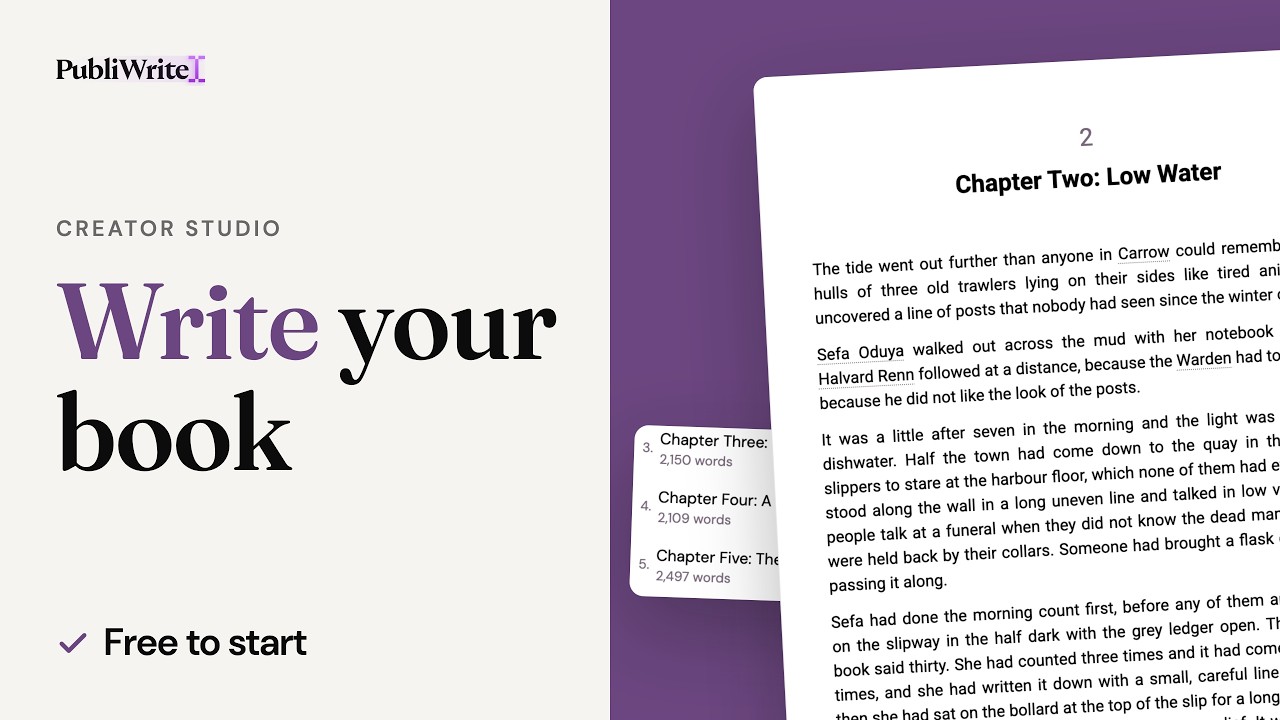
Prefer to watch? This short video guide walks through every step.
Steps
- On your dashboard, click New book, choose Start writing from scratch, enter a Working title, pick your Genres and click Open Studio. To come back to a book later, click Continue writing on your dashboard.
- The Outline on the left has three parts: Front matter, Body and Back matter. Click a chapter to open it.
- Write. The header switches from Saving... to Saved once your words are stored.
- To add a chapter, click Add in the outline and choose Chapter, or Part to group the chapters that follow it. Give it a title and click Save.
- Hover over a chapter and open its three-dot menu to Edit the title, Move up or Move down, Set status (Draft, Revising or Done) or Delete it. Marking a chapter Done saves a milestone in your version history, and a deleted chapter can be restored from there.
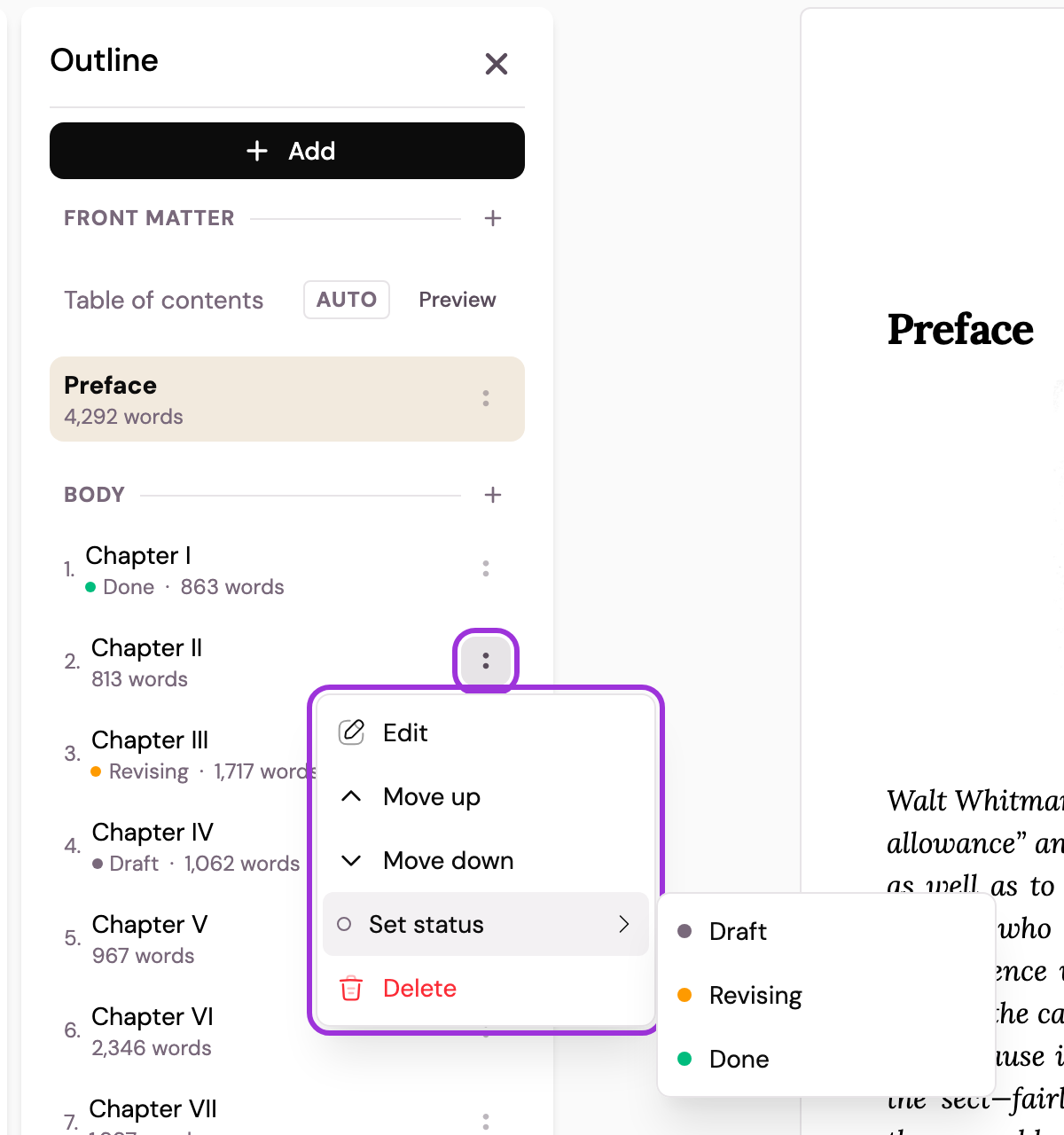
- Click the plus beside Front matter to add pages that come before chapter one, such as Title page and copyright, Dedication or Epigraph. The plus beside Back matter adds pages such as Acknowledgements.
- To change your book's title, description or genre, click Settings in the left rail, open the Manuscript tab and click Save manuscript when you're done. Once a format is live, the title and genres are locked.
- Click Preview in the header to see your book the way readers will. Pick a format, and for print a book size, then click Open preview.
If something goes wrong
- Chapter is greyed out in the Add menu. A book can hold up to 50 chapters. Delete any you no longer need to make room.
- A banner says "Reconnecting". Keep writing and keep the tab open. We save your changes as soon as the connection is back.
- A banner says your session has expired. Your latest changes aren't being saved. Click Sign in again, sign in in the new tab, then come back to this one.
- You can't open Creator Studio for a book you uploaded. Books started with I already have a finished file stay as finished files. To edit the text here, start a new book with Import a Word or PDF document instead.
- Text you paste from Google Docs doesn't appear. In Google Docs, use File > Download > Microsoft Word (.docx), then in Creator Studio use File > Import > Word or PDF.
Related
- How do I import a book I wrote elsewhere?
- How do I format my book?
- How do I work with an editor or co-author?
- How do I restore an earlier version?
Still stuck? Message us from the chat bubble and we'll help.
Updated on: 23/11/2026
Thank you!