
How do I format my book?
You format your book in Creator Studio by picking one of twenty book designs, and the same design covers your eBook and your print edition. You can use a design as it is, or open every setting and fine-tune it.
Before you start
Formatting works for books you write or import in Creator Studio. If you chose I already have a finished file, your EPUB or PDF is printed and sold exactly as you made it, so there is nothing to format here.

Prefer to watch? This short video guide walks through every step.
Steps
- Open your book in Creator Studio and click Settings in the left bar. Formatting is the first tab.
- Use the All genres menu to narrow the designs to your kind of book, such as Romance or Poetry.
- Click a design. The sample on the right sets your own opening chapter in that style. Switch the sample between Print and eBook to check both editions.
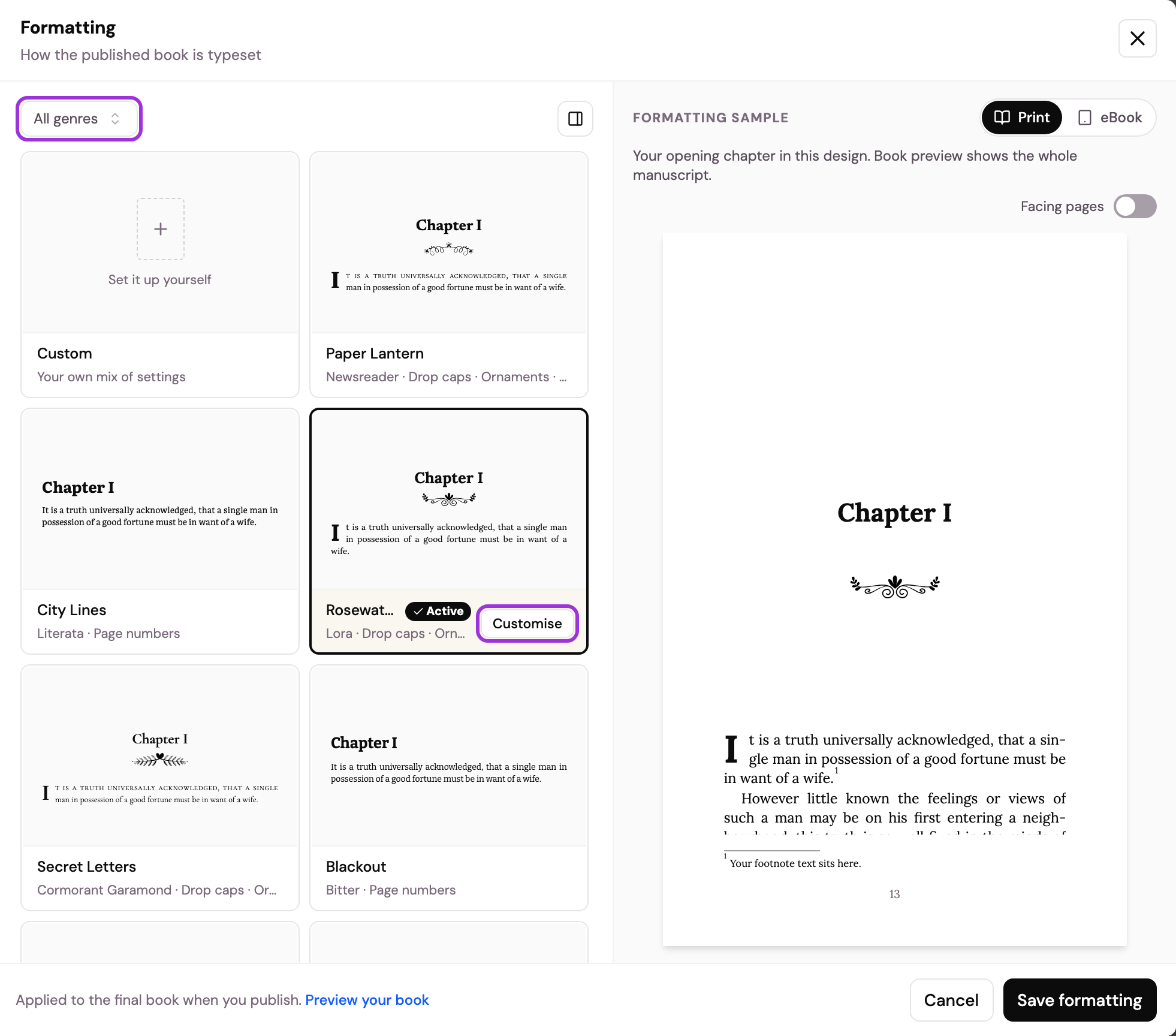
- To fine-tune, click Customise on the active design. To start from scratch instead, pick the Custom card (Set it up yourself).
- Change what you need. Settings are grouped under Typography (body font from the full Google Fonts list, body size, line spacing), Paragraphs (indented or spaced, justify, hyphenation), Chapter openings (title format, alignment, sinkage, drop cap, small-caps lead-in), Ornamental break and Page furniture (running heads, page numbers). Click All designs to go back to the grid.
- Click Save formatting. Settings closes and your book takes the new design. Nothing is kept until you save, and Cancel throws away your changes.
- Click Preview (the eye icon) in the left bar. Under Format, choose an edition. For a print format, also pick a Book size. Then click Open preview and page through your book as a reader would.
If something goes wrong
- The Preview your book link is greyed out. You have unsaved changes. Click Save formatting first.
- You can't find Customise. It only shows on the design marked Active. Click a design first, then Customise appears on its card.
- Your own ornament won't upload. It must be an SVG line drawing of 512 KB or less.
- The preview still looks wrong. See My preview looks wrong. How do I fix it?
Related
- My preview looks wrong. How do I fix it?
- Which page sizes and paper can I choose?
- How do I design an eBook cover?
Still stuck? Message us from the chat bubble and we'll help.
Updated on: 23/11/2026
Thank you!