
How do I design a paperback cover?
A print book needs a full wrap cover, with the back, spine and front in one piece. You design it on the Cover step under Print cover, and we size it from your page count and paper so the spine fits.
Before you start
- Finish Page size (for Creator Studio books) and Print options first. The cover size depends on both.
- Your book needs at least 24 pages for a paperback, or 44 for a hardcover. Shorter books can't be printed.
- Use a computer. The cover designer does not open on a phone or small tablet.

Prefer to watch? This short video guide walks through every step.
Steps
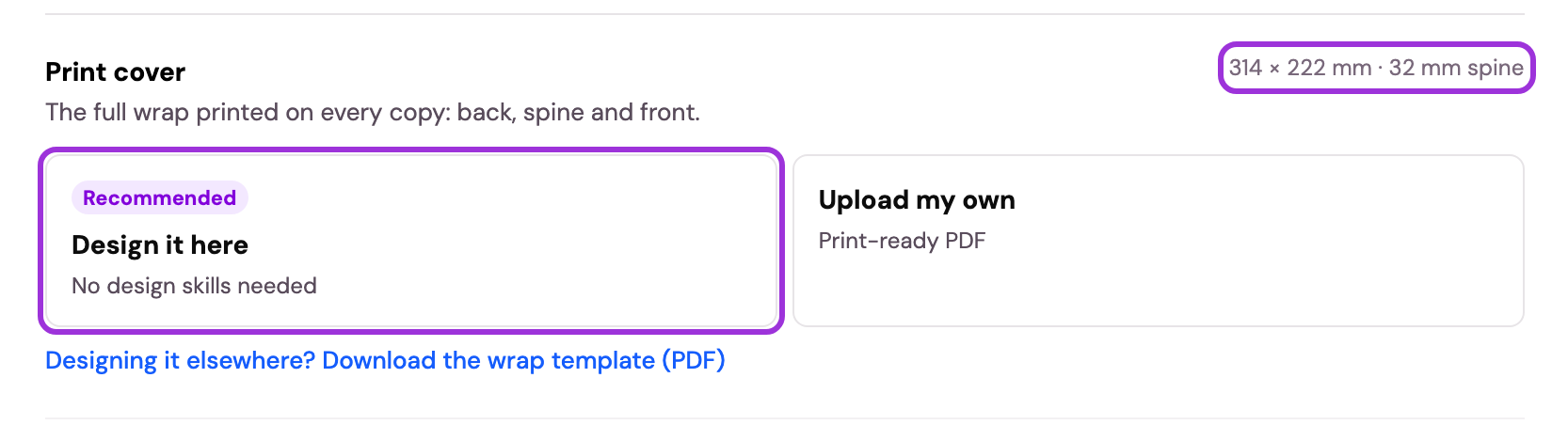
- In the publish steps, open Cover and scroll to Print cover. The wrap size and spine width are shown beside the heading. Choose Design it here.
- In Compact mode, pick a style, check the words on the back and front, then choose your background and text colours. Click Continue to move between the three steps.
- Switch to Advanced for more control. The guides show the Trim line, the Safe area and the Bleed (or Wrap on a hardcover). Keep your words inside the safe area, and run your background to the outer edge.
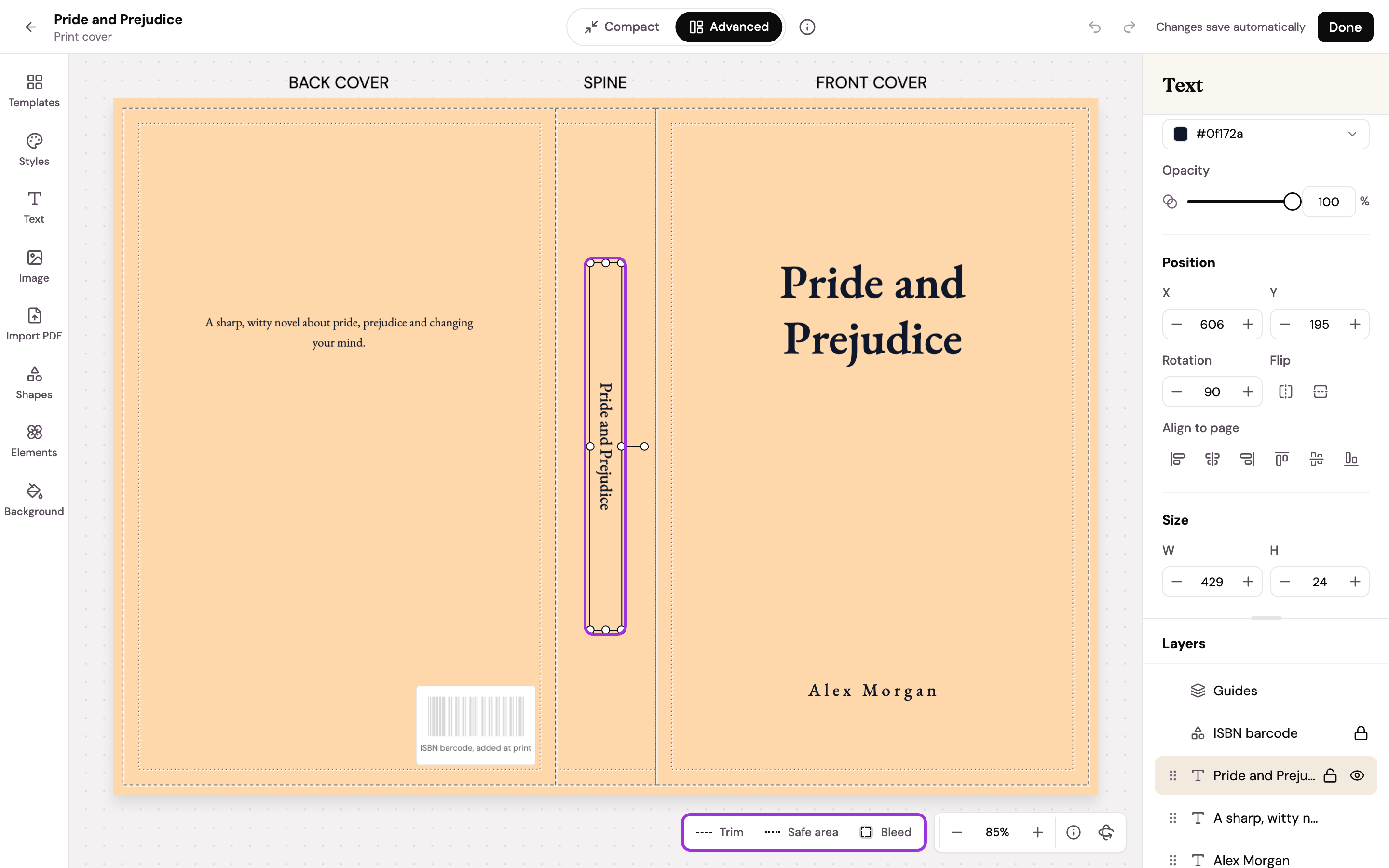
- To put the title on the spine, add a line with Text, type the title and make it smaller. Set Rotation to 90, drag it onto the spine, then use Align to page to centre it.
- Click the Preview in 3D button and drag the book round to check the spine and back.
- Click Done to add your print cover.
Leave the box on the back cover empty. We add your ISBN barcode there when we print.
If something goes wrong
- "This book is too short to print as a paperback". Add more pages, or choose a digital format.
- "We couldn't work out your cover size". Click Go to print options, check your choices, then open the designer again. Or click Try again.
- Your print cover disappeared. Changing the page size or format removes the print cover, because its size changes. Open Design it here again: your design is still there, resized to fit. Check it, then click Done.
Related
Still stuck? Message us from the chat bubble and we'll help.
Updated on: 23/11/2026
Thank you!