
My preview looks wrong. How do I fix it?
Your preview is built from two things: your text and your formatting settings. Work out which one causes the problem, fix it in Creator Studio, save, then open the preview again.
Before you start
Preview is only there for books you write or import in Creator Studio. If Uploaded manuscript shows next to your book on My manuscripts, readers get your file exactly as you uploaded it, so fix it in the software you made it with.

Prefer to watch? This short video guide walks through every step.
Steps
- In Creator Studio, select Preview in the header.
- In the Book Preview window, choose eBook, paperback, hardcover or PDF under Format. For print, also choose a Book size. Then select Open preview.
- Turn the pages and note what looks wrong and where.
- If it's how the book looks (fonts, spacing, chapter openings, page numbers), select Settings in the header to open Formatting. Pick a different design, or select Customise on your current one to change single settings.
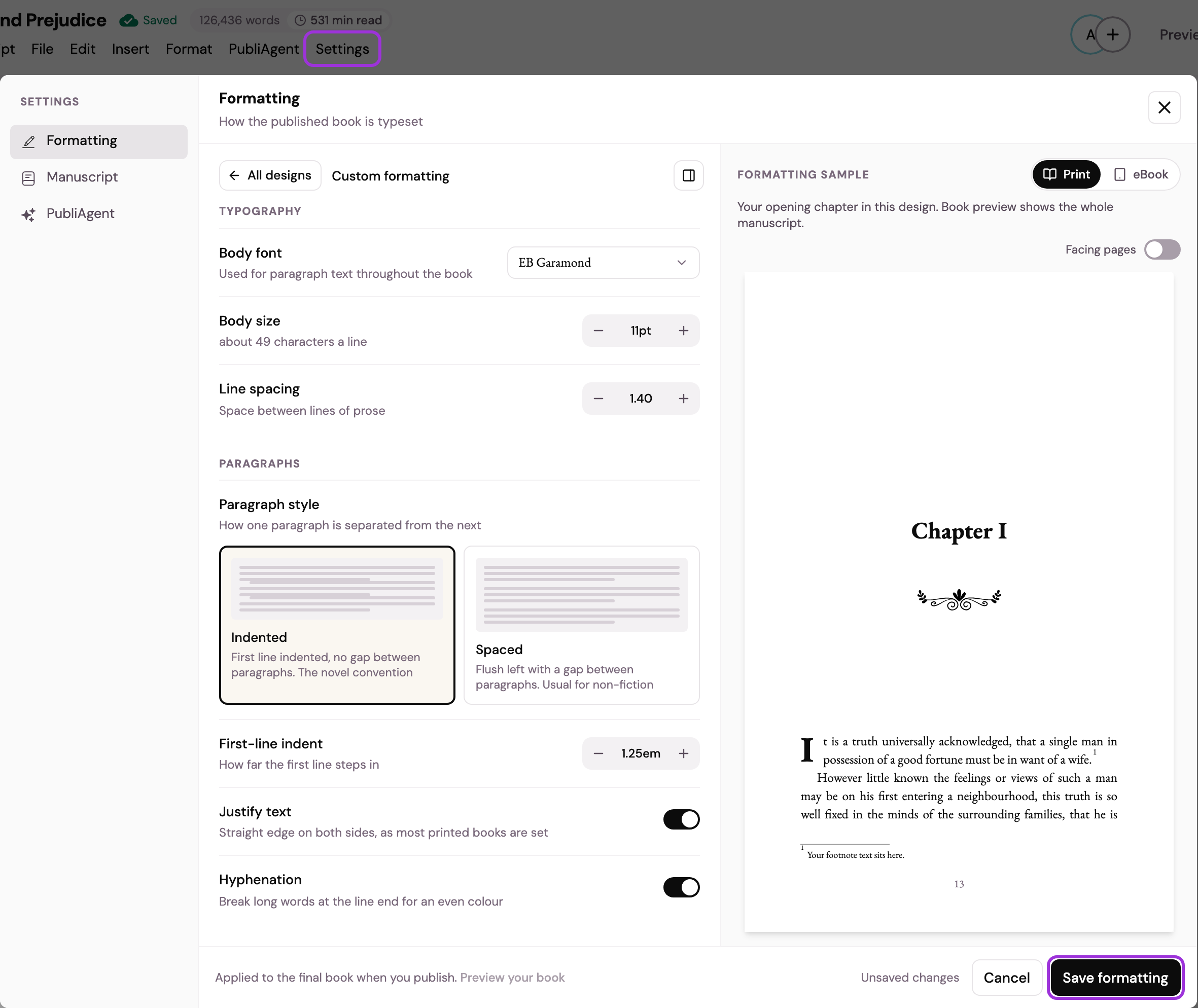
- Select Save formatting, then open Preview again to check.
- If it's the words or the chapter breaks, fix them in your text and outline instead. Formatting can't move text between chapters.
If something goes wrong
- The font, size or line spacing is wrong. Change it under Typography.
- Paragraphs look cramped, gappy or uneven. Check First-line indent, Justify text and Hyphenation under Paragraphs.
- Chapter titles, drop caps or the contents look wrong. Use Chapter openings: Title format, Title alignment, Drop cap and Contents depth.
- Page numbers or running heads are wrong. Change Running heads and Page numbers under Page furniture.
- A chapter starts in the wrong place, or two chapters run together. That's the text, not the design. Fix the break in your book, then preview again.
- Your change doesn't show. You haven't saved it yet. Select Save formatting before you reopen the preview.
- There's no Preview button. Your book came in as a finished file. See My import or upload failed. What now?
- Your book is already live. See Can I update my book after publishing? for how a fix reaches your readers.
Related
Still stuck? Message us from the chat bubble and we'll help.
Updated on: 23/11/2026
Thank you!