
My import or upload failed. What now?
Most failed imports come from the file itself: the wrong format, a scan, a password, or a file that's too big. The red message under your file names the problem, and the fix is usually to save a fresh copy and try again.
Before you start
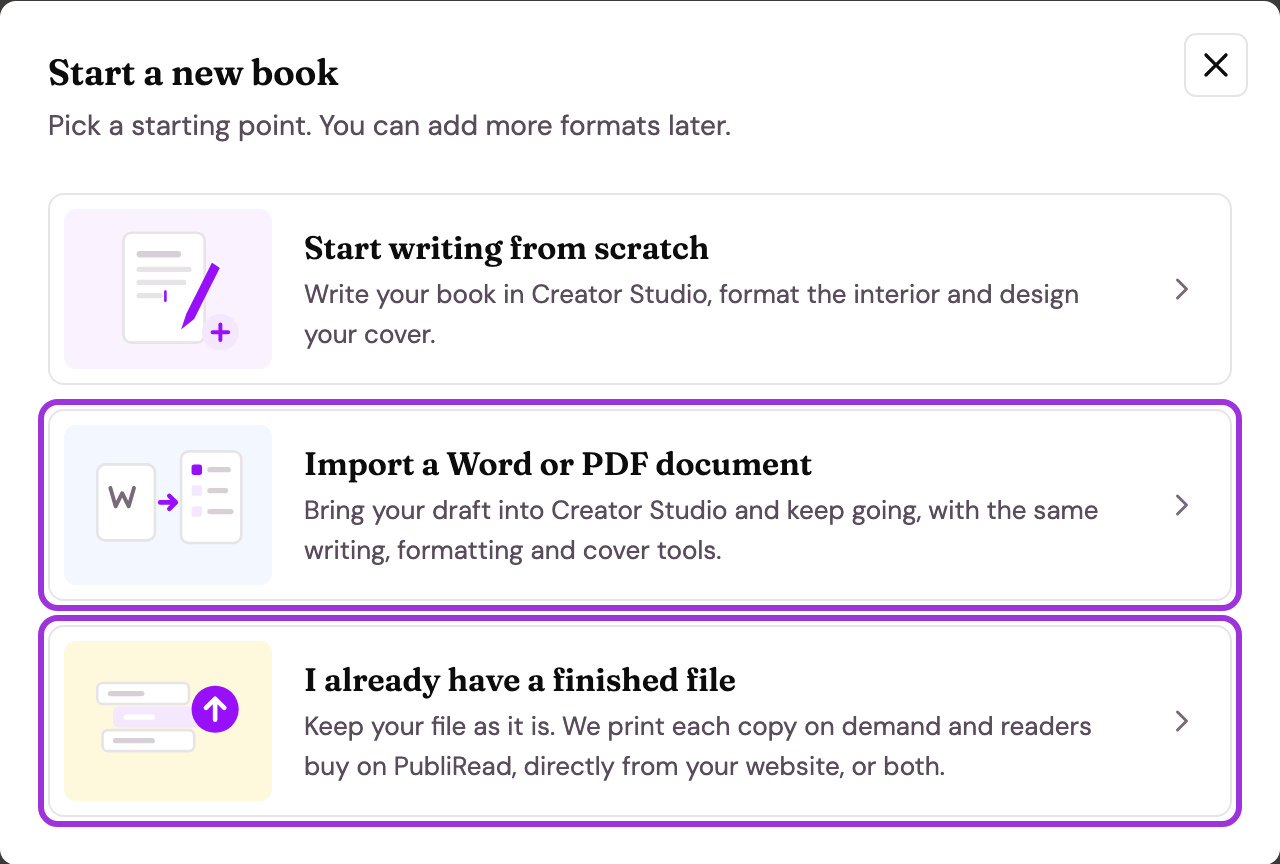
Check which route you chose in the Start a new book window, because the files and limits differ:
- Import a Word or PDF document brings your text into Creator Studio so you can edit it. It takes a .docx or .pdf up to 50 MB.
- I already have a finished file uploads a file that stays exactly as it is: an .epub for an eBook, a .pdf for print or PDF. It takes files up to 100 MB.
Steps
- Read the red message under your file and find it in the list below.
- Fix the file as the list says.
- Try again. In the Start a new book window, drop the fixed file on the upload area. In Creator Studio, select Try again to resend the same file, or Choose a file to pick the fixed one.
- When the import works, Creator Studio shows the chapters it found. Check them, then select the Add button (for example, "Add 13 chapters").
If something goes wrong
- "password protected or saved in the older Word .doc format". Open it in Word, remove any password, then use File > Save As and choose Word Document (.docx).
- "This file isn't a Word document". From Google Docs, use File > Download > Microsoft Word (.docx) and upload that file.
- "This looks like a scanned PDF" or "We couldn't find any selectable text". The pages are pictures. Run the scan through a free OCR tool to get a .docx, or use a text-based PDF.
- "This PDF is password-protected" or "We couldn't read this PDF". Export it to a new, standard PDF, or import a .docx instead.
- Too large, or too many pictures. Split the book into parts. In Creator Studio, File > Import > Word or PDF adds each part to the end of your book.
- "We could not find any text in this file". Move your writing out of text boxes into the body of the document.
- "The upload didn't finish". Try again, on a steadier connection if you can.
- "That file won't work for the … format". A finished eBook must be an .epub. Print and PDF formats need a .pdf.
- Chapters split in the wrong places. In the chapter check, use Merge into the one above or Pick where the next chapter starts.
- You can't edit your book in Creator Studio. If Uploaded manuscript shows next to it on My manuscripts, it came in as a finished file. Start a new book with Import a Word or PDF document instead.
- A print PDF is rejected for its page size. Re-export it at a size we print. See Which page sizes and paper can I choose?
Related
- How do I import a book I wrote elsewhere?
- What do my cover files need?
- Which page sizes and paper can I choose?
Still stuck? Message us from the chat bubble and we'll help.
Updated on: 23/11/2026
Thank you!