
How do I publish and start earning?
There's nothing to apply for: once you have an account, you can publish. Add your book, submit each format for review, and you earn from every sale once it's live on PubliRead.
Before you start
- Your plan. The Free plan lets you publish one format every 3 months, and each format counts separately, so an eBook and a paperback of the same book are two. Paid plans have no limit: see our pricing page.
- Your country. We pay earnings through Stripe or PayPal, so we can only pay you in countries they cover. Check Can I get paid in my country? before you publish.
Prefer to watch? This short video guide walks through every step.
Steps
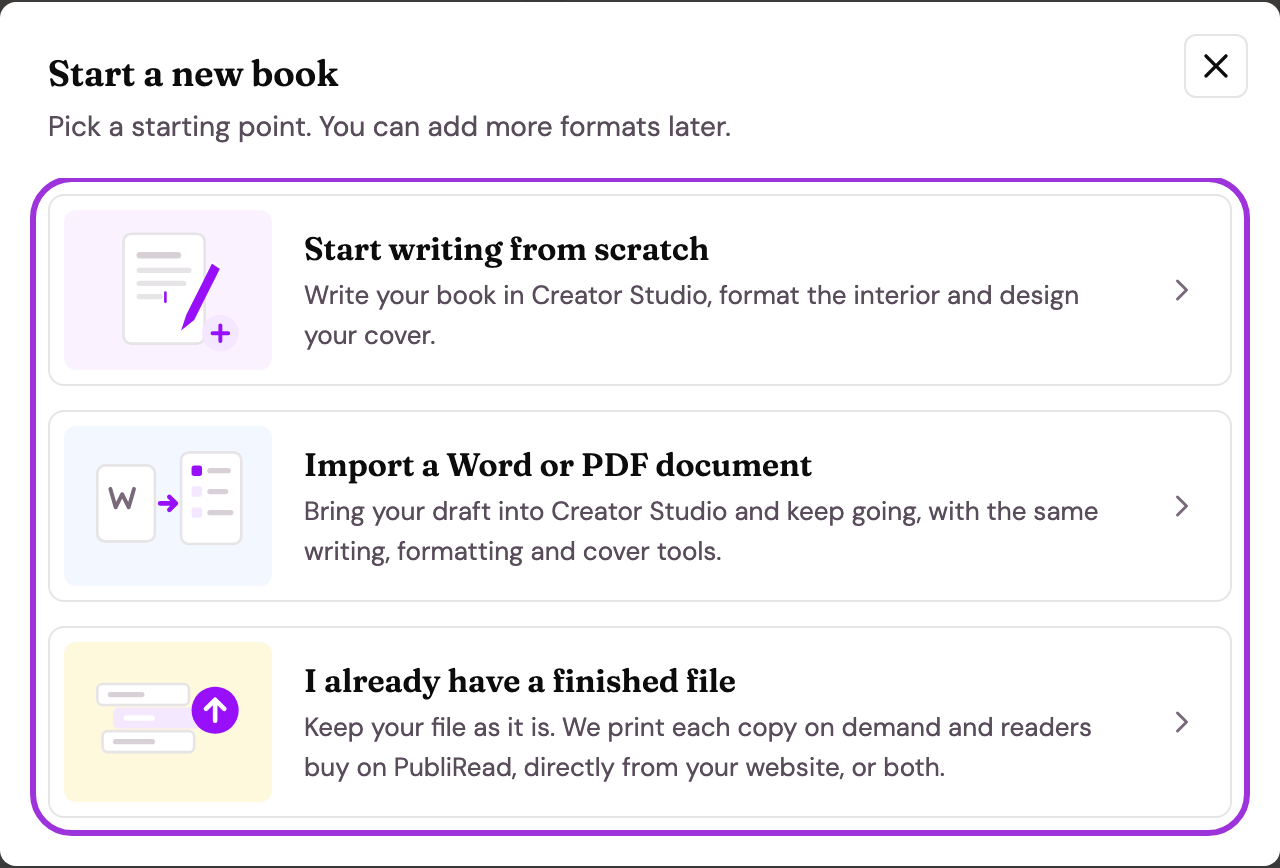
- In your dashboard, click New book and choose how to start:
- Start writing from scratch to write in Creator Studio.
- Import a Word or PDF document to bring in a draft and keep editing it.
- I already have a finished file to upload an EPUB or print-ready PDF as it is. You can't edit an uploaded file in Creator Studio later.
- Add a Working title and your Genres, then:
- From scratch: click Open Studio and write your book.
- Importing: click Continue and add your Word or PDF document.
- Finished file: click Continue, pick the format, upload your file and click Continue to publishing. Skip to step 4.
- When your book is ready, click Publish at the top of Creator Studio, pick a format (Ebook, PDF, Paperback or Hardcover) and click Continue to setup.
- Work through the publishing steps, from Book details to Cover and Price. On the Cover step you can design your cover or upload your own.
- On Review & submit, click Submit for review. Our team checks your book, and once it's approved it goes on sale on PubliRead.
- To add another format, such as a paperback after your eBook, click Publish another format on the screen you see after submitting.
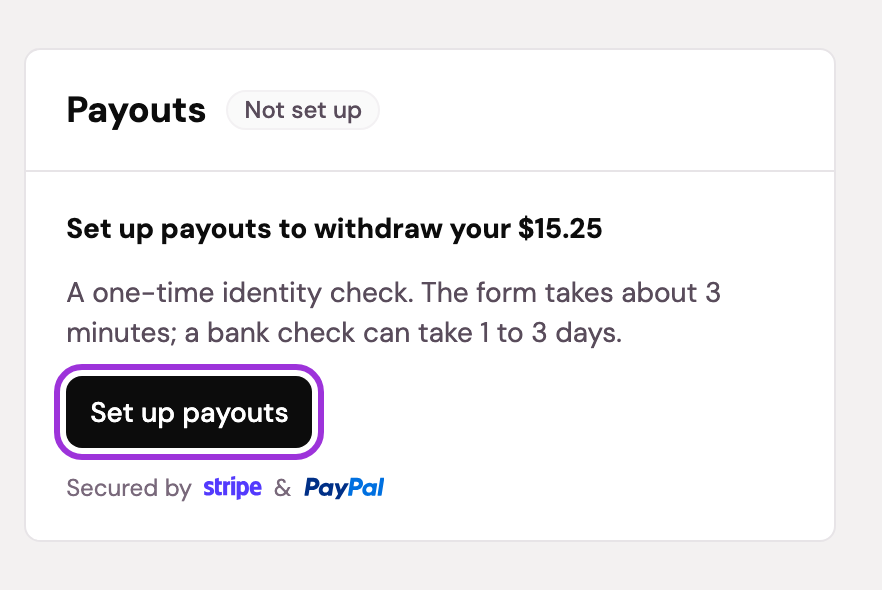
- Open Earnings and click Set up payouts to verify your identity with Stripe or PayPal. You need this before your first withdrawal.
Your earnings become available 45 days after each sale, once the buyer refund window closes.
If something goes wrong
- The Publish button is greyed out. Only the book's owner can publish it. If you were invited to someone else's book, ask the owner to publish.
- You can't get past Book details. Your author profile needs your first and last name and an author description. Add them and continue.
- You're told to wait or upgrade. On the Free plan, a format in review or published in the last 3 months uses your allowance. Wait, or move to a paid plan.
- Your book was sent back. Make the changes we asked for and click Resubmit for review. See My book was sent back. What do I change?
- Your country isn't listed when you set up payouts. Message us from the chat bubble and we'll tell you what's possible.
Related
- How do I publish an eBook?
- Can I get paid in my country?
- Is it free to publish, and which plan do I need?
- How long does review take, and what do we check?
Still stuck? Message us from the chat bubble and we'll help.
Updated on: 23/11/2026
Thank you!