
How do I buy and read a book?
Open the book on PubliRead, pick a format and tap Buy now. If you're signed in, the book goes to your Library. If you buy as a guest, we email you a private order link instead.
Steps
- Open the book's page on PubliRead and choose a format: eBook, PDF, Paperback or Hardcover, depending on what the author offers.
- Tap Buy now to go straight to checkout, or Add to cart to keep browsing. Where your device supports it, an Apple Pay or Google Pay button also shows under Buy now.
- Buying without an account? Enter your email address. For an eBook or PDF, tick the box to confirm you want immediate access, then choose Continue to payment. For a printed book, choose Continue to delivery and add your address first.
- Pay by card or wallet.
Free books skip payment: tap Read now (eBook) or Download PDF on the book's page. Signed in, the book is added to your Library. As a guest, enter your email and choose Get your free book.
Read your book
If you were signed in, open your avatar menu and choose Library.
- Tap an eBook to read it in your browser.
- Tap a PDF to download it.
- Tap the ⋮ button on a book to Send to Kindle or Send to Kobo (Kobo takes eBooks only).
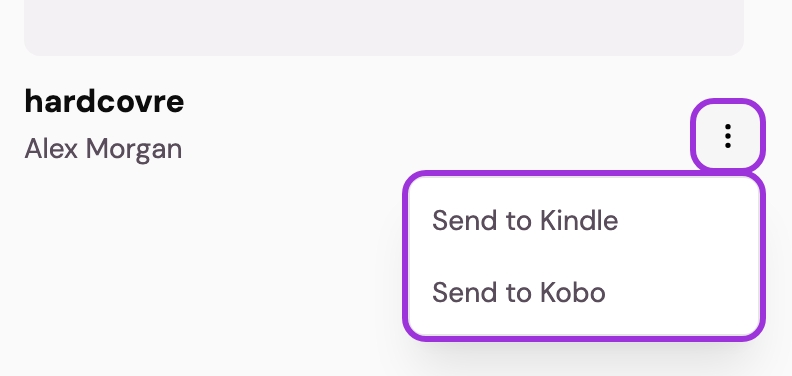
If you bought as a guest, open the order link we emailed you. From there you can Read online, Download EPUB or Download PDF, or send the book to a Kindle or Kobo. The link doesn't expire, and anyone with it can open your book, so keep it private.
If you bought a printed book, we print it and post it to you. Signed-in readers can find the order under Order history in the avatar menu.
If something goes wrong
- Your order page says "Confirming payment". Don't pay again. The page updates by itself, and we email your order link once the payment is confirmed.
- The book isn't in your Library. You may have bought it as a guest or with another email address. See I can't open a book I bought.
- You've lost your order link. Go to Find your order, enter the email address you ordered with and choose Email my order links.
Related
Still stuck? Message us from the chat bubble and we'll help.
Updated on: 23/11/2026
Thank you!