
How do I set what Google shows for my website?
The Search & sharing tab on your Storefront page sets the title, description, picture and icon that Google and shared links show for your website. Save your changes, then publish, and readers see the new details.
Before you start
You need an author website (see How do I build an author website?). Changes reach readers when you publish, which needs Author Plus or Authorpreneur.
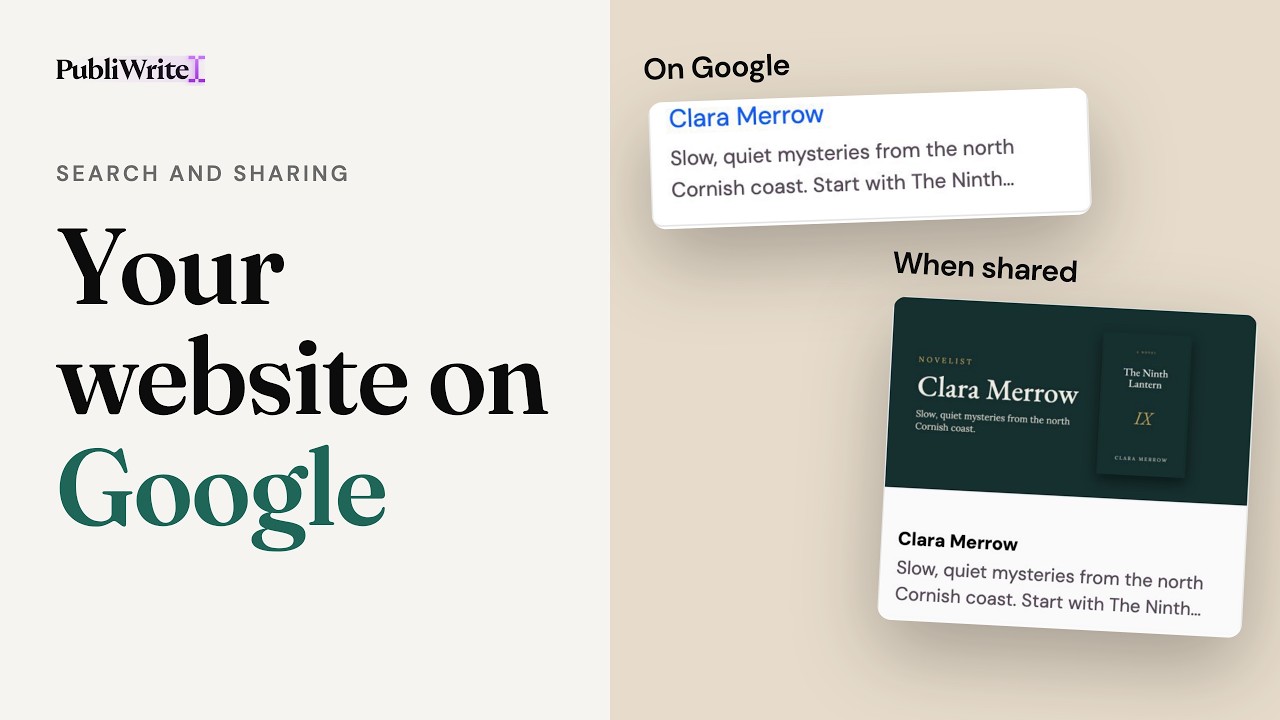
Prefer to watch? This short video guide walks through every step.
Steps
- Open Storefront under Website in the menu on the left and click the Search & sharing tab. The previews on the right update as you type.
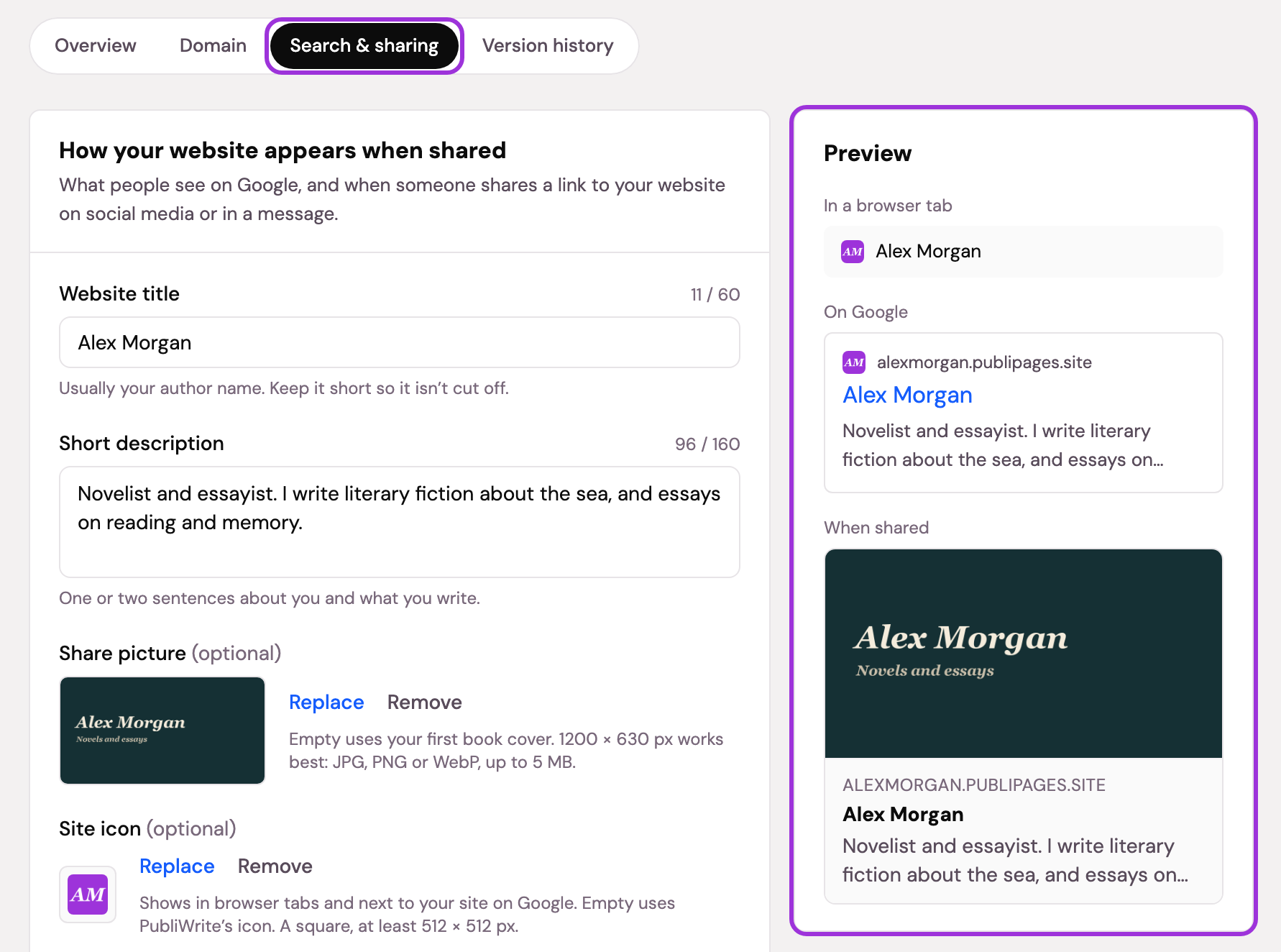
- Fill in your Website title. It's the name in a browser tab and the link on Google, and it's usually your author name. The counter turns red after 60 characters, where Google may cut it off.
- Write a Short description: one or two sentences about you and what you write. Aim for 160 characters or fewer.
- Add a Share picture if you like. People see it when your link is shared in a message or on social media. Without one, we use your first book cover. 1200 × 630 px works best: JPG, PNG or WebP, up to 5 MB.
- Add a Site icon if you like: a square of at least 512 × 512 px. It shows in browser tabs and next to your site on Google. Without one, we use our own icon.
- Leave Website language on Same as your books, or pick the language your website is written in.
- Keep Show my website on Google and other search engines switched on. Turn it off only while you're still getting the site ready. People with the link can still visit.
- Click Save changes. If we ask whether to publish now, click Publish changes (or Publish website the first time). Otherwise, use the same button at the top of the page. When it's done, the button reads Up to date.
If something goes wrong
- "Needed before you can publish." The title or the description is empty. Fill both in and save.
- Your website shows a different title or description from the one you typed. Your home page has its own in the builder, and that one wins. Click Edit website and, with Home open and no section selected, look at the panel on the right (on a phone, tap Page settings). Under Search and sharing, change or clear Page title and Description.
- Google still shows your old details. Check that the publish button reads Up to date. Google refreshes its results on its own timetable, so the change can take a while to appear there.
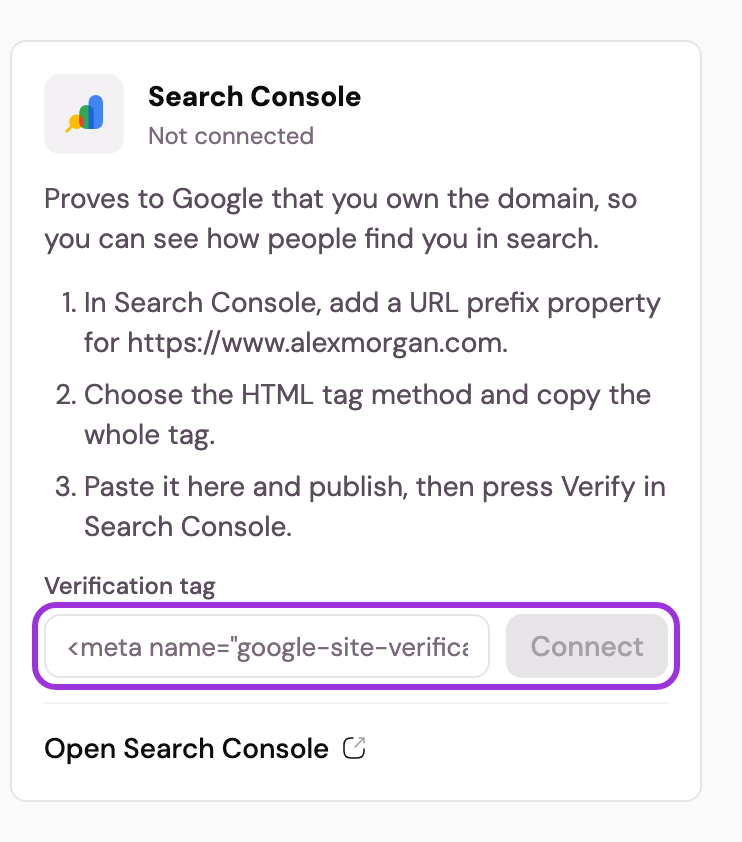
- You want to verify your website in Google Search Console. Open Analytics under Website and find Search Console under Connected services. Follow the steps on the card: paste the tag from Google, click Connect, publish your website, and only then press Verify in Search Console. If Verify failed before, press it again after publishing. Connected services need your own domain.
Related
Still stuck? Message us from the chat bubble and we'll help.
Updated on: 23/11/2026
Thank you!